Description
3DR Radio Telemetry Kit 433MHz 500mW
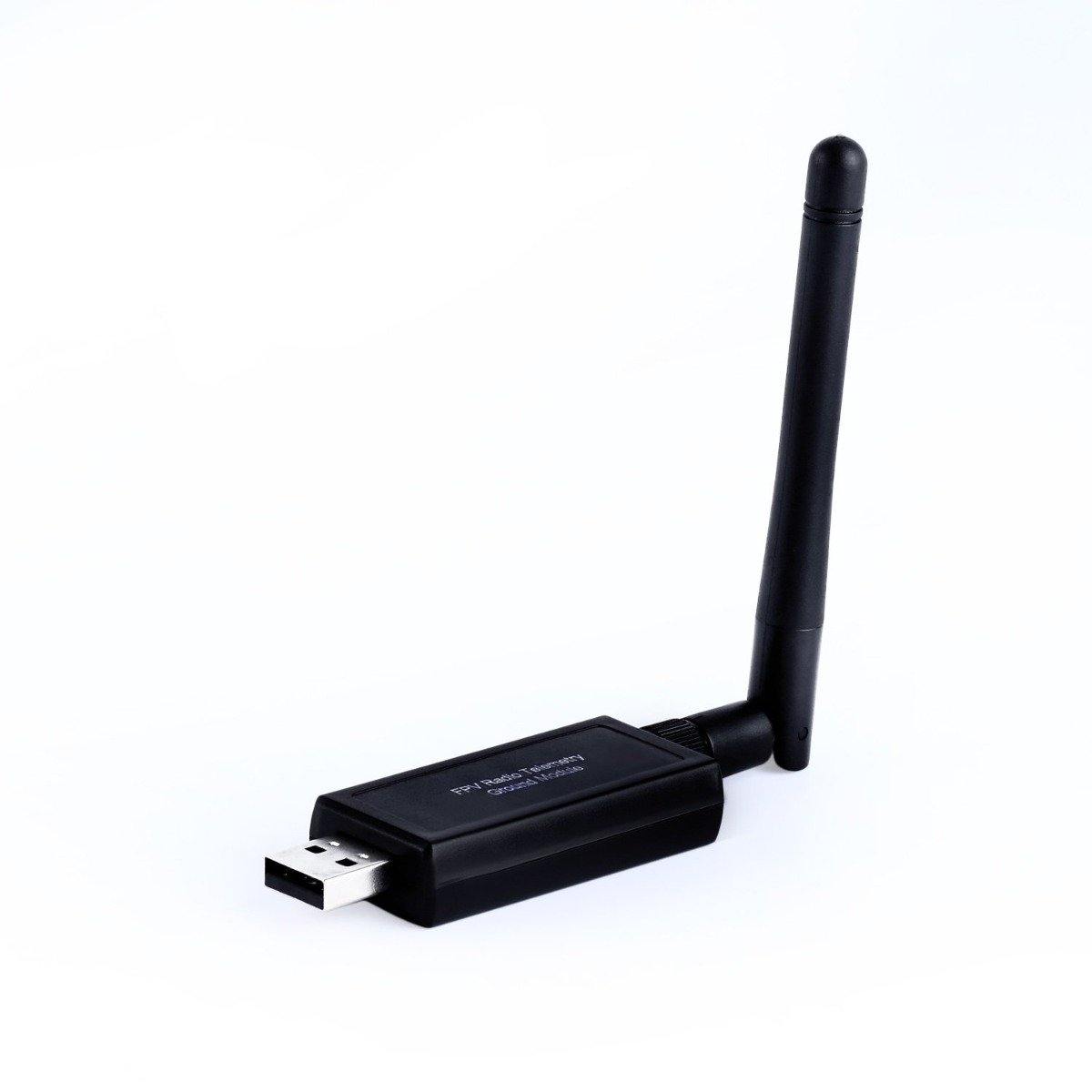
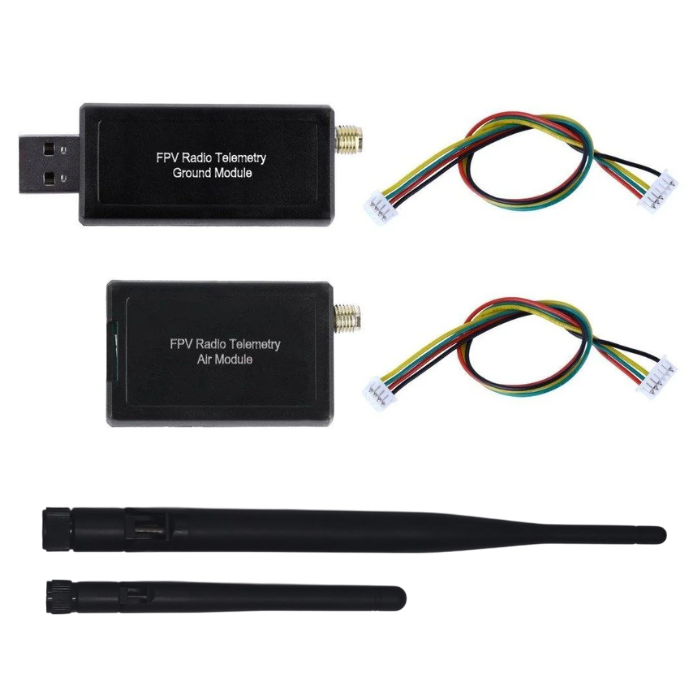
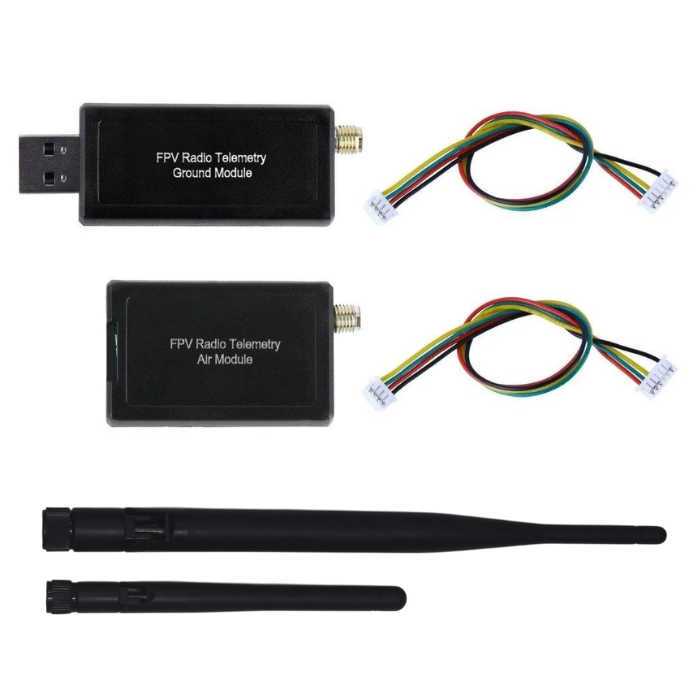
The 3DR Radio Telemetry Kit has a 433Mhz frequency band and Receiver sensitivity to -124 dBm. This 3dr telemetry kit allows you to link to a flight controller to a USB or UART-equipped device such as a computer, laptop or tablet supporting a USB connection (OTG).
The Radio set lets you see live data, such as live GPS position overlaid on a map, system voltage, heading, waypoint navigation and much more. The system utilizes the 433MHz band and provides a full-duplex link using HopeRF’s HM-TRP modules running custom, open-source, firmware.
Using open-source MAVlink based ground station software, you can even fly your aircraft with a joystick via your computer and update settings live! Or just use it for your DIY projects that need a wireless Serial interface. This kit offers a great low price, longer range, and superior performance. The system utilizes the 433MHz band and provides a full-duplex link using HopeRF’s HM-TRP modules running custom, open-source, firmware.
Features :
- MAVLink protocol framing status documents
- Frequency modulation and Spread Spectrum (FHSS)
- Self-adaption to time-division multiplexing
- Support LBT and AFA
- Configurable duty cycle
- Built-in error-correcting code(up to 25% data bit error)
- AT command configure data transmission
- RT command remote control data transmission
- Interchangeable air and ground 433MHz modules
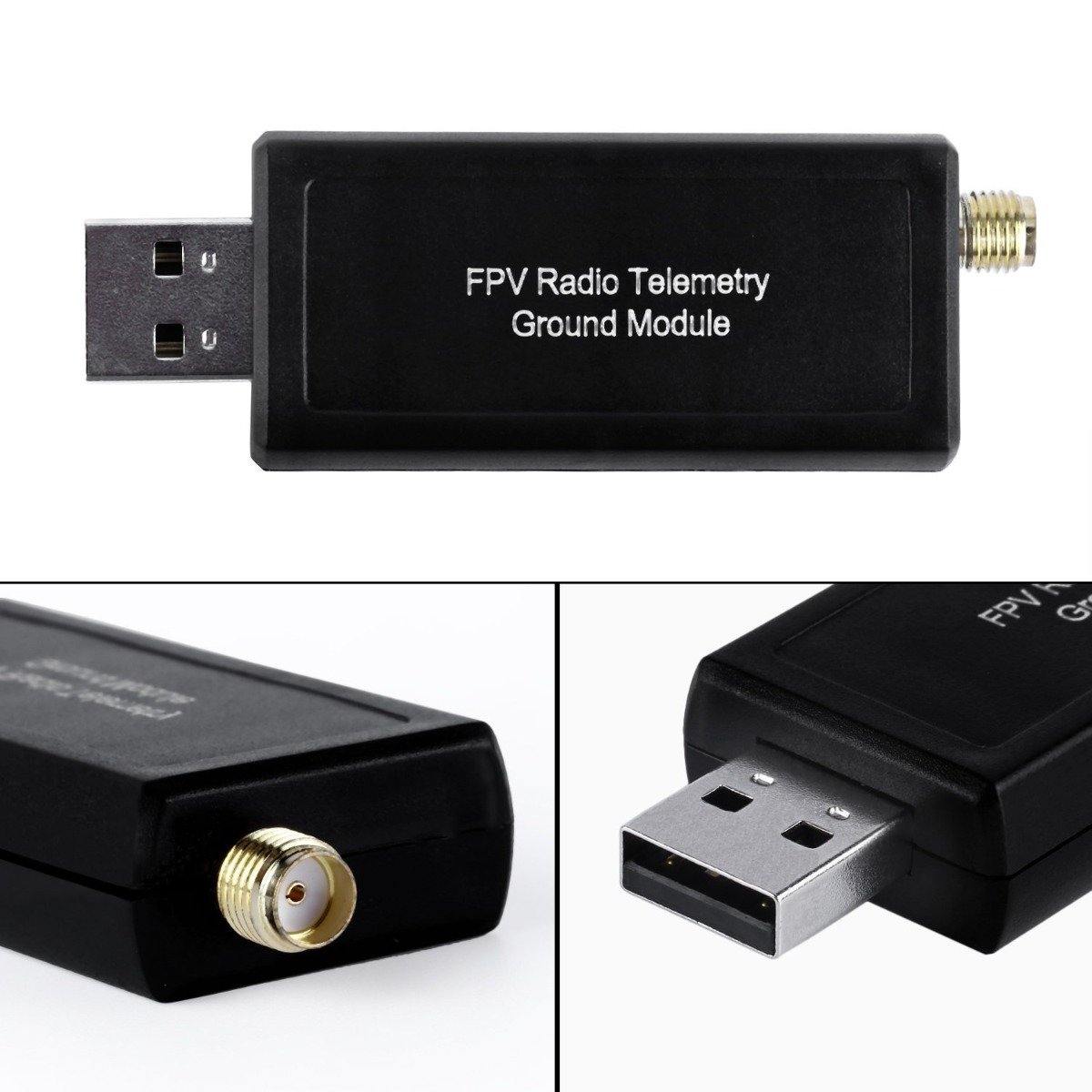
- Micro-USB port
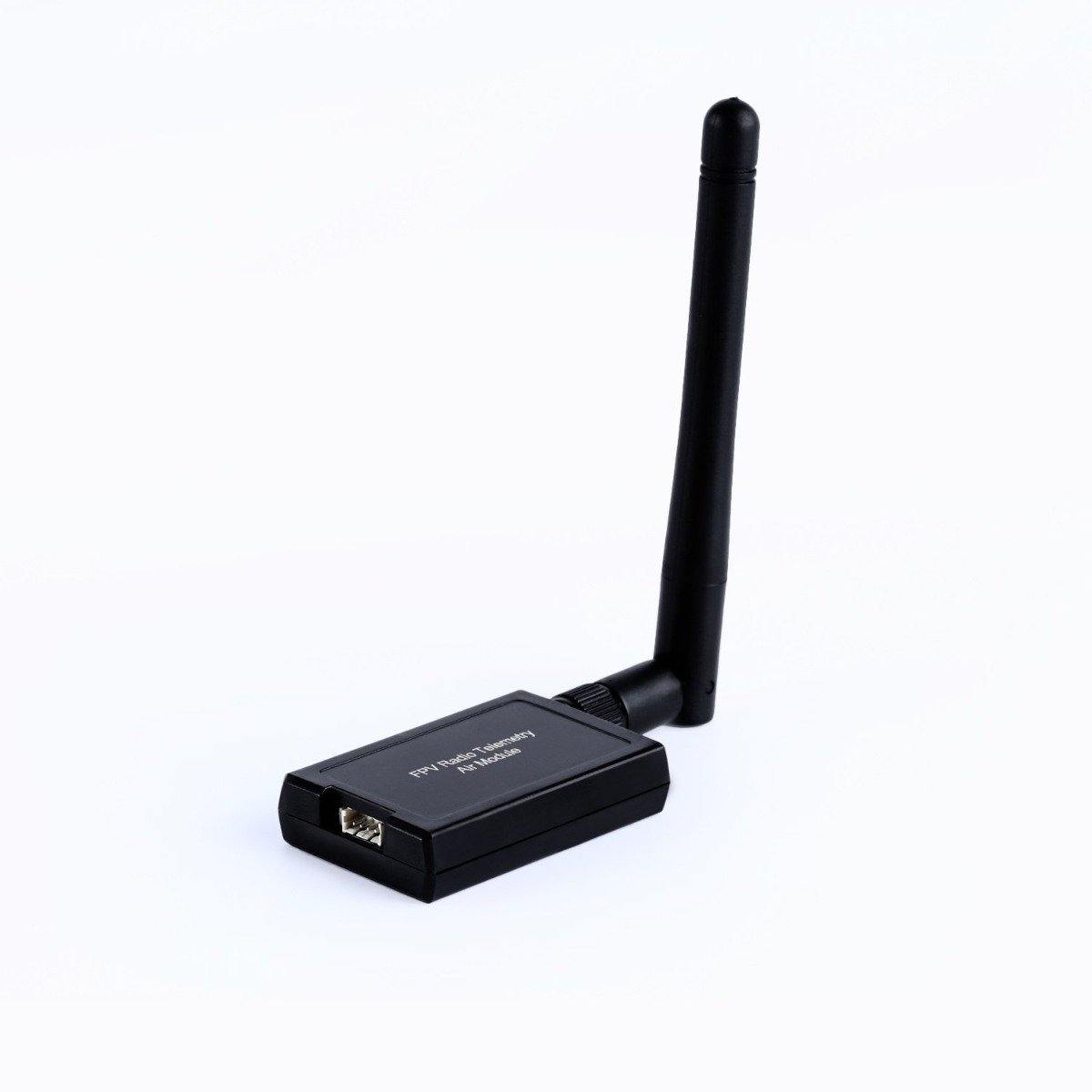
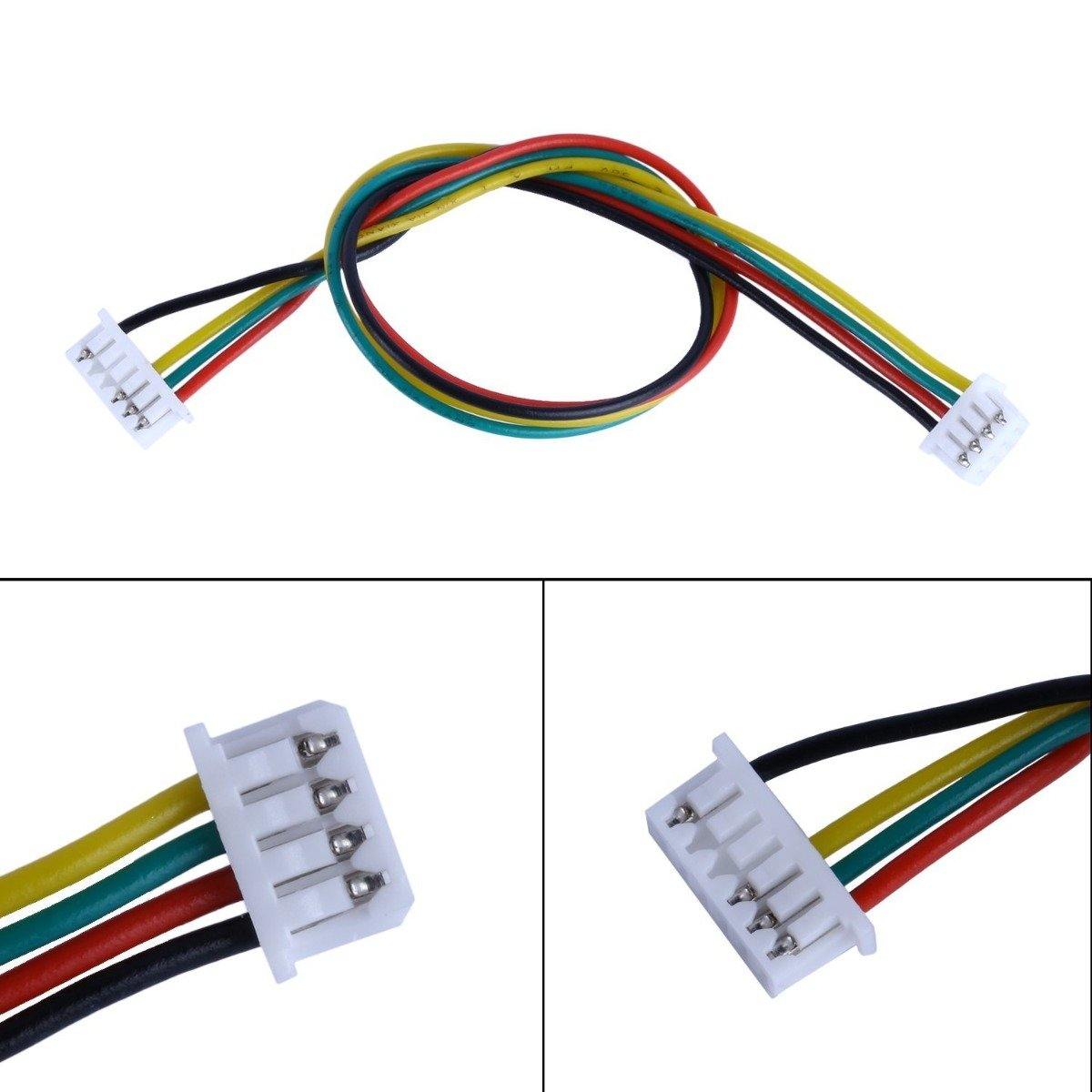
- 6-position Molex connector
- 500 mW maximum output power (adjustable)
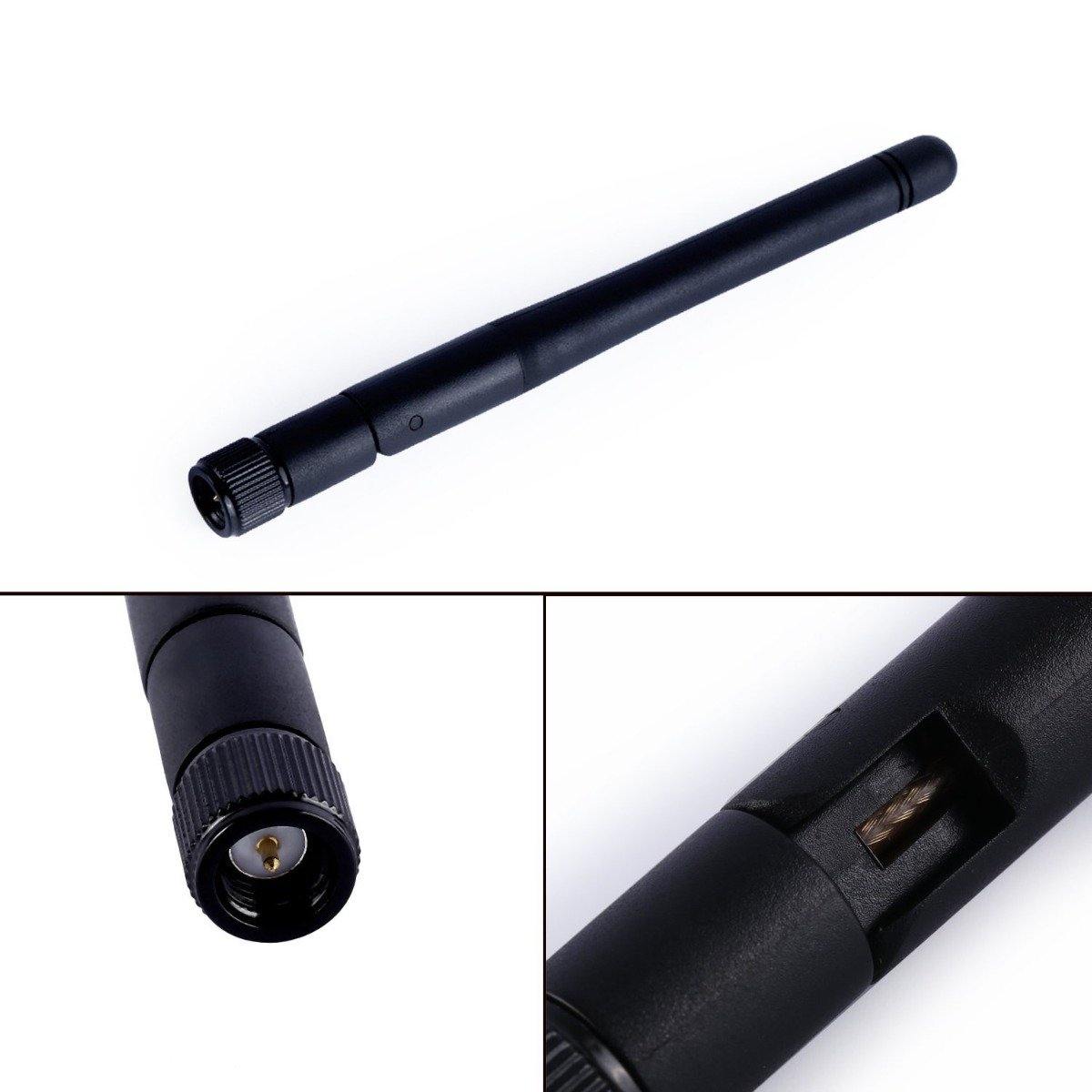
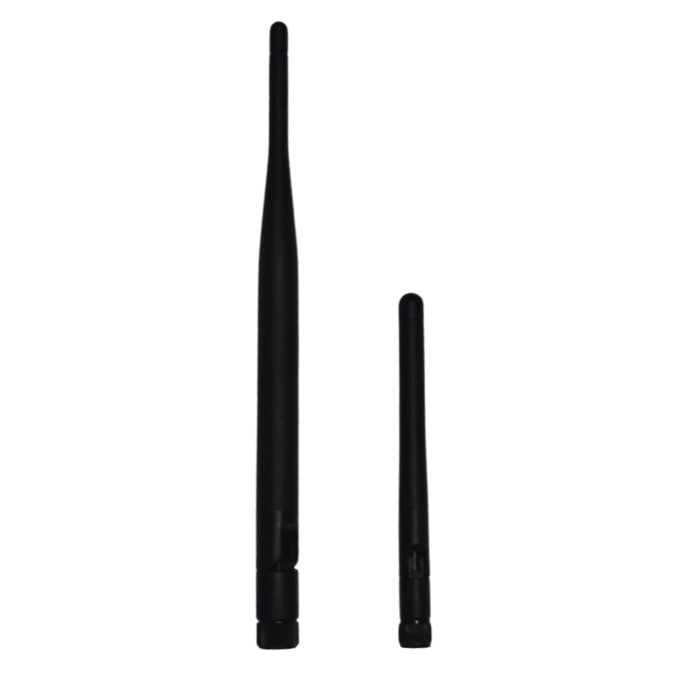
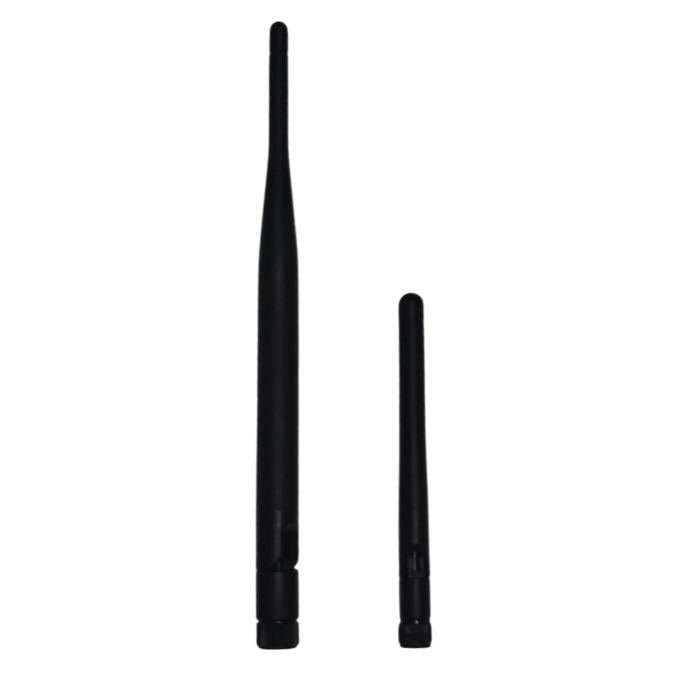
- SMA connector
- 2-way full-duplex communication through adaptive TDM
- UART interface
- Transparent serial link
- Open-source SIK firmware
- Configurable through *Mission Planner and *APM Planner
- Based on the HM-TRP wireless module, with Si1000 8051 microcontroller and Si4432 wireless module
Setup Guide: 3DR Radio Telemetry Kit with Pixhawk / ArduPilot
- Step 1 – Identify Modules: Separate the kit into the Air module (mounted on the drone) and the Ground module (connected to your PC).
- Step 2 – Connect to Pixhawk: Plug the Air module into the Pixhawk’s TELEM1 or TELEM2 port. Connect TX to RX, RX to TX, 5V to 5V, and GND to GND.
- Step 3 – Connect Ground Module: Plug the Ground module into your PC using the provided USB cable. It will appear as a COM port once detected.
- Step 4 – Install Drivers: Install USB-to-serial drivers if your PC doesn’t recognize the device automatically.
- Step 5 – Open Mission Planner or QGroundControl: Launch your preferred ground control software and select the correct COM port and baud rate (usually 57600).
- Step 6 – Verify Radio Link: Power both modules. The green LED on both units should light up when they are successfully connected.
- Step 7 – Match Settings: Make sure both radios have matching Net ID, air speed, and frequency band for proper communication.
- Step 8 – Configure Pixhawk: In your flight controller parameters, set the serial port protocol to MAVLink and confirm baud rate matches the radio’s configuration.
- Step 9 – Test Telemetry: With both modules powered, confirm that live data such as GPS, altitude, and battery voltage appears on the ground control station.
- Step 10 – Mount Securely: Fix the Air module and antenna away from power lines or motors to avoid interference and ensure a stable link during flight.
Applications
- Used for wireless telemetry communication between drone and ground control station.
- Ideal for real-time flight data monitoring and mission planning.
- Supports long-range communication for UAVs, rovers, and boats.
- Enables parameter tuning and firmware updates without a wired connection.
- Useful in autonomous drone operations and waypoint navigation missions.
- Can be integrated into DIY robotics and research projects requiring remote control.
- Enhances safety by allowing pilots to track vehicle status and GPS location live.
- Suitable for aerial mapping, surveying, and agriculture drone applications.
Troubleshooting: Fixing Connection Drops
- Check Antenna Connection: Ensure both antennas are firmly attached and oriented vertically for optimal signal strength.
- Verify Power Supply: Make sure both modules receive stable 5V power; low voltage can cause intermittent disconnections.
- Inspect Cable Connections: Double-check TX/RX and GND wiring between the Air module and Pixhawk for loose or reversed connections.
- Reduce Interference: Keep the telemetry modules away from high-current wires, ESCs, or Wi-Fi routers that may cause signal noise.
- Match Firmware Versions: Both radio modules should run the same firmware version to prevent data mismatch or signal dropouts.
- Recheck Frequency & Net ID: Ensure both radios are set to the same frequency, network ID, and air data rate in the configuration tool.
- Monitor Signal Quality: In Mission Planner or QGroundControl, check RSSI values; if low, reposition antennas or reduce distance.
- Update Configuration: Reset both radios to default settings and re-pair if the link continues to drop intermittently.
- Use Shorter Cables: Avoid long or unshielded cables that can introduce noise or voltage drops affecting communication.
- Test with Another Port: Try using TELEM2 or a different USB port on your PC to isolate hardware-related connection issues.
Reviews
There are no reviews yet.